




Read in: עברית · 简体中文 · 正體中文 · Tiếng Việt · 日本語 · Italiano · Português · Nederlands · Deutsch · Українська · Türkçe · Oʻzbekcha · Français · Español



| You have | Go to |
|---|---|
| An Android TV or Google TV | Quick start: a coding assistant does the work in about fifteen minutes. |
| A Samsung, LG, Roku, Vizio or Hisense VIDAA TV | cleanyour.tv/not-android: CleanYourTV can't run there, but you can turn off the tracking with your remote. |
| A phone or laptop, no coding agent | One of the community apps for Android phones, Mac and Windows, made by independent developers. |
| Want to see it first | What you get: screenshots of the new home screen. |
Official links: cleanyour.tv and this repo. Other domains using the name, such as cleanyourtv.com, are not run by this project (#1004). CleanYourTV publishes no app in any app store, and clean-your-tv.net is not ours either.
How it works · Quick start · What you get · Supported TVs · Doing it by hand · The launcher · Restoring · Firmware updates · Questions · Contributing
Android TVs have the same debug bridge as Android phones. Switch on USB debugging in the TV's developer options, allow your computer once, and the rest is standard Android tooling:
| Step | What happens |
|---|---|
| Back up | The list of installed packages and settings. |
| Disable | The manufacturer's telemetry, ad services, content rows and preloaded junk, with pm disable-user. Nothing is uninstalled, so a restore script can undo every step. |
| Install | A small native launcher, made the default home screen. |
No root, no cable, nothing uninstalled, and a one-line restore if you change your mind.
The bloat differs by brand, so the prompt has your coding assistant discover it on your TV and ask before touching anything you might use.
| You have | Do this |
|---|---|
| A computer | Use the prompt with a coding assistant: the three steps below. |
| A computer, no coding assistant | Run the three steps yourself: the commands are in Doing it by hand. |
| A phone or laptop, no coding assistant | Pick one of the community apps: free, open-source apps built on these TV lists by independent developers. |
The three steps below are written for a coding assistant: the computer needs to be on the same Wi-Fi as the TV, with a shell on it, plus Python 3, a JDK from 17 through 22, and Android SDK platform 34 with build-tools 34 (the assistant builds the launcher there). Without an assistant, Doing it by hand is the same job, run by you, and it has the install commands.
Any of these work: Claude Code (on 0G Private Computer or an Anthropic plan), Codex, Gemini CLI, Antigravity CLI or DeepSeek Harness.
| Where | What to do |
|---|---|
| 1. On the TV | Settings → Device Preferences → About → press OK on Build seven times → back → Developer options → USB debugging on. If you see a Network or ADB debugging toggle, turn that on too. Keep the TV on. |
| 2. On your computer | Clone the repo and open that folder in your assistant (git clone https://github.com/Gathin23/cleanyourtv), then paste PROMPT.md and fill in your TV model. |
| 3. Follow along | Accept "Allow USB debugging?" on the TV, then answer the checklist: which apps you use, the dock size and app order, whether to keep the voice assistant, Chromecast and updates. |
Cloning matters: the assistant reuses this repo's tools/disable.sh and launcher/build-and-install.sh
instead of writing its own, and that is where the backup, the Home guard and the restore record live.
The assistant backs up, debloats, builds and installs the launcher, and checks each step with screenshots pulled from the TV. With this repo as context it takes about fifteen minutes.
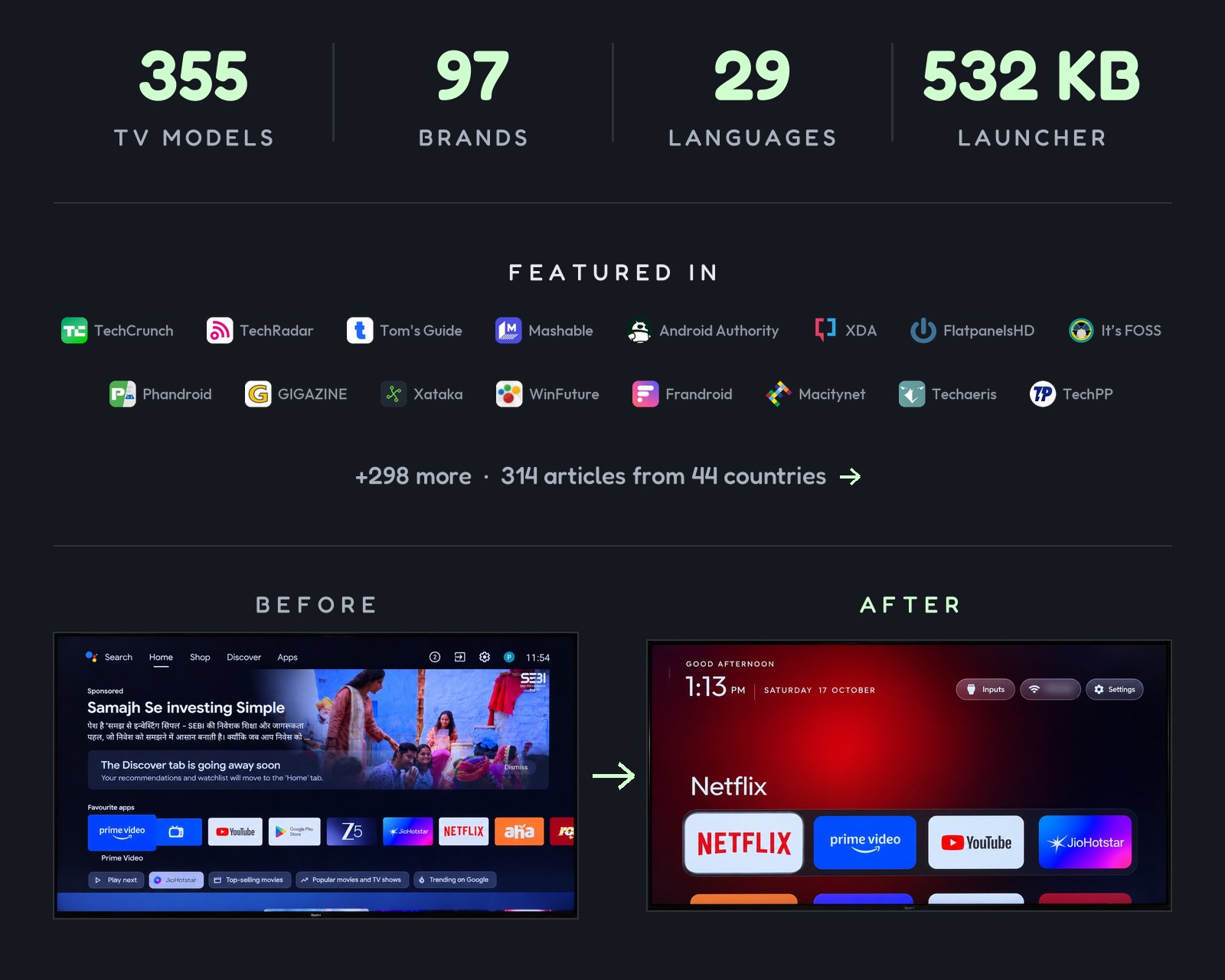
A home screen that looks like an Apple TV and gets out of the way:
| Part | What it looks like |
|---|---|
| A pitch-black home | A dock of your four favourite apps in a rounded band, where Apple TV puts it. |
| A top shelf | Names the focused app in large type, with an ambient glow in a colour taken from its artwork. |
| The rest of your apps in a grid | Slides up when you press Down. |
| One floating glass highlight | Springs from tile to tile. The focused tile lifts and shows its name. |
| Three frosted buttons | Inputs (HDMI ports under the names you gave them in the TV's settings, AV, Live TV), Wi-Fi or Ethernet with the network name, Settings. |
| A greeting, a thin clock and the date | In Outfit, and a matching Clock screensaver. Set show_stats in config or a theme for one line under the clock: CPU, free memory and free storage. It stays off unless you turn it on, and it refreshes only while Home is on screen. |
| Themes and module cards | Themes change colours, wallpaper, dock and columns without a rebuild, and module cards let other apps plug a tile in, only with your say-so. |
And a TV that stops working against you: no sponsored rows, no "Discover" nags, no analytics phoning home, no apps you never asked for.
 |
 |
| Top shelf and ambient glow | Inputs: HDMI with connection state, AV, Live TV |
 |
 |
| The grid, one glass highlight, the tile's name | Clock screensaver, drifts so nothing burns in |
 |
 |
Aurora theme, pushed with tools/theme.sh |
Six columns and a six-app dock, same launcher |
 |
 |
| Hold OK on a tile, Move: arrows carry it, Back puts it down | App library: one press puts a removed app back on Home |
Anything running Android TV or Google TV.
| Platform | What works |
|---|---|
| Android TV, Google TV | The debloat and the launcher. |
| Fire TV | The debloat half only, since Fire OS will not hand Home to a third-party launcher. And on the 2015 Fire TV Box (Fire OS 5) even that half fails: every pm route is refused. |
| A few China-market TCL sets | They refuse to install any launcher at all; their lists say so in the header. |
| Samsung (Tizen), LG (webOS), Roku, Vizio, Hisense VIDAA | Not supported (no ADB). Turn off the tracking instead: cleanyour.tv/not-android. See SHOWCASE.md for four webOS ports, and docs/devices/samsung-tizen.md for what a 2021 Samsung set answers over Wi-Fi (no ADB, so no pm disable-user) if you are weighing a Tizen port. |
Tested lists from contributors, one folder per model in examples/. The brands with the
most lists, each linked to its models on the website:
| TCL · 85 | Sony · 50 | Xiaomi · 44 | Philips · 23 | Skyworth · 17 | Hisense · 16 |
| SHARP · 10 | Amazon Fire TV · 9 | Panasonic · 8 | Haier · 7 | BenQ · 6 | JVC · 6 |
| Toshiba · 6 | Acer · 4 | Formovie · 4 | Nokia · 4 | OnePlus · 4 | Thomson · 4 |
| Artel · 3 | FFalcon · 3 | Google · 3 | Grundig · 3 | Motorola · 3 | Noblex · 3 |
| NVIDIA Shield · 3 | onn · 3 | RCA · 3 | Redmi · 3 | RockTek · 3 | Vu · 3 |
+82 more brands and 14 projector brands
Challenger 2 · CHiQ 2 · DEXP 2 · EKO 2 · Hitachi 2 · Insignia Fire TV 2 · Kalley 2 · Kogan 2 · Lumio 2 · Master-G 2 · PRISM+ 2 · Sankey 2 · Sber 2 · Síragon 2 · TIM 2 · Vidda 2 · AiPro2K · AiPro4K · AIWA · AQUA · ASUS · Beko · Bell Canada · BGH · Caxium · Cecotec · Compac · Dcolor · Dialog · Durabrand · DYON · Essentiel b · Freebox · HAAM · Hikeen · Home+ · Impex · INCLO · Indurama · Jio · Karbonn · Kodak · Koryo · KTC · KUNFT · Liberton · LYNCAST · Magyar Telekom · MarQ · MECOOL · Metz · MTC · Next · OK. · OPPO · Panavox · PEAQ · Philco · Polytron · PPTV · Prosonic · Salora · SAMPO · SANYO · Seleco · Smarttech · STRONG · SunWind · Super General · TD Systems · Tele System · Tesla · TiVo · Tornado · Turbo-X · Turkcell · Tuvio · Verizon · VISIO · Vision · Vityas · X.Vision · Alwtniet, Anker Nebula, BYINTEK, Chihi, Epson, Gadnic, HOTACK, HY320, JMGO, Magcubic, Portronics, Stellamore, Wanbo and XGIMI projectors
Find your TV: search cleanyour.tv/tvs or the full table in examples/README.md.
Your TV not here? The prompt discovers the bloat itself. Add your list afterwards and the next person with your model skips that step: CONTRIBUTING.md.
Everything the assistant does, you can run yourself. Two things have to be on the computer first:
| You need | For |
|---|---|
| Python 3 (any 3.x) | The tools. The venv command below installs what they import. |
JDK 17 through 22 (a full JDK, including jlink) and Android SDK platform 34 with build-tools 34.0.0 or any newer 34.x |
Building the launcher. JDK 23 and newer stops Gradle 8.9. Platform 34 is the one the build reads; a newer platform does not replace it. On macOS, when none of these is installed: brew install openjdk@17 android-commandlinetools, then sdkmanager "platforms;android-34" "build-tools;34.0.0". On Linux the install script looks in ~/Android/Sdk and for java on your PATH. |
tools/tv.py talks to network ADB on port 5555. If that port stays closed and the TV offers
Wireless debugging with a pairing code (the Chromecast with Google TV and the Google TV Streamer
do), pair it once with the stock adb. Then either run adb tcpip 5555 to open the port, which
usually lasts only until the TV reboots, or keep it closed: point TV_ADB_BINARY at that same
adb and TV_HOST at the port the Wireless debugging screen shows, and the tools reach the TV
through the paired connection with nothing listening on 5555
(tools/native-adb.md). Troubleshooting
has both, with the pairing steps.
python3 -m venv tools/venv && tools/venv/bin/pip install -r tools/requirements.txt
export TV_HOST=192.168.1.50                                   # your TV's IP address

tools/venv/bin/python -I tools/tv.py --probe                 # model, Android version, firmware
tools/venv/bin/python -I tools/tv.py 'pm list packages'      # one shell command on the TV
tools/disable.sh examples/xiaomi-mi-tv-4a/debloat.txt        # apply a debloat list
tools/restore.sh examples/xiaomi-mi-tv-4a/debloat.txt        # undo it, stock launcher back
tools/venv/bin/python -I tools/check.py examples/xiaomi-mi-tv-4a/debloat.txt   # what a firmware update undid
launcher/build-and-install.sh                                # build the launcher and make it Home (needs the TV_HOST export above)
tools/theme.sh themes/aurora                                 # push a theme; --reset removes it
tools/venv/bin/python -I tools/wallpaper_prep.py ~/Pictures/trip mytheme/wallpapers # your photos, sized and darkened for the TV| Tool | What it does |
|---|---|
tools/tv.py |
Pure-Python ADB client: shell, batch, push, pull, reboot, and screenshots, optionally pressing remote keys first. Works where the stock adb binary is blocked. Optional paired Google ADB backend for encrypted Wireless debugging. |
tools/docker-build.sh |
Builds the launcher or an add-on in Docker (JDK 17, Android SDK 34), so this computer needs nothing but Docker. Install the result with SKIP_BUILD=1. Guide. |
tools/b64push.py |
Uploads large files such as APKs in base64 chunks and verifies the checksum. |
tools/relay.py |
Forwards a local port to the TV's ADB port, for assistants whose sandbox can't reach your network. Listens on this computer only. Guide. |
tools/disable.sh, restore.sh |
Apply or undo a debloat list, the undo from the state recorded before the change. |
tools/recovery.py |
Writes the record disable.sh needs to undo itself, and prints the restore batch. |
tools/check.py |
Compares the TV with the list that was applied, for what a firmware update undid; --fix puts it back. |
tools/match.py |
Reads a saved pm list packages and prints, for each package, how many lists in examples/ disable it, how many keep it commented out, and their most common note; Android's core packages show as never. Offline, changes nothing (tools/venv/bin/python -I tools/match.py packages.txt). |
tools/adb-closed.py |
Checks that the TV's network ADB port is closed once debugging is off: exits 0 when the TV refuses the connection, 1 while it is still open, 2 when nothing answered or the check itself could not run. No nc needed. |
tools/philips-api.py |
Philips only: checks that the JointSpace control API Home Assistant uses still answers, before and after a debloat (tools/venv/bin/python -I tools/philips-api.py <tv ip>). Port 1926 over HTTPS first, then 1925; reads only what answers without pairing. |
tools/privacy.py |
Audits the TV for voice, ACR and telemetry candidates and prints the evidence for each; --write turns the findings into a list disable.sh and restore.sh already understand. |
tools/theme.sh, theme_restart.py |
Push a folder from themes/ to the launcher and restart Home. |
tools/wallpaper_prep.py |
Turns a folder of your own photos (JPEG, PNG, WebP, HEIC) into darkened 1280×720 JPEGs under 300 KB for a theme's wallpapers/ folder. Needs Pillow, plus pillow-heif for HEIC (tools/requirements-photos.txt). Never touches the originals. How to use it. |
tools/manage.py |
List every add-on, theme and switch with its screenshot, see what is on the TV, and install, update or remove one by running its creator's own script. |
tools/bench.py |
Measures the launcher that answers HOME: key latency, how far the focus moved, janky frames, cold start, return to Home, and the idle CPU and PSS it costs. Changes nothing on the TV and writes the raw per-key numbers to JSON; no extra install. |
tools/trace.py, trace_report.py |
Records Perfetto traces of the launcher (return to Home, cold start, D-pad) and reports where its time goes, per run and before against after. Optional: needs requirements-perf.txt. Guide. |
tools/flamechart.py |
Draws a before/after flame chart from those traces, for a pull request: one lane per thread on a shared time scale, the work a change targets in magenta with its total. Optional, like the trace tools. Guide. |
tools/screendiff.py |
Compares a before and an after screenshot pixel by pixel, leaving out the clock or anything you mask, and writes the pair with your Wi-Fi name blurred. Optional, like the trace tools. Guide. |
tools/race_calendar.py |
Writes this season's F1 calendar into a theme for race-weekend mode, from the free Jolpica API. |
launcher/build-and-install.sh |
Builds a shrunk release (about 572 KB), installs it, switches Home, and rolls back if Home does not land on it. |
The scripts never leave the TV without a Home app: they only disable a stock launcher they recognise, and skip the Home app in a list until another launcher answers HOME. Your own lists can live outside the repository: list paths are relative to the directory you run from, and absolute paths work too.
Windows (PowerShell)
Every script has a PowerShell twin next to it. Install Python 3 and a JDK from 17 through 22, and
in the SDK Manager add platform 34 and build-tools 34 (34.0.0 or any newer 34.x). The script uses
JAVA_HOME when it points at a JDK in that range, and otherwise Android Studio's bundled JDK when
that JDK is in the same range:
python -m venv tools\venv; tools\venv\Scripts\python.exe -m pip install -r tools\requirements.txt
powershell -ExecutionPolicy Bypass -File launcher\build-and-install.ps1 -TvHost 192.168.1.50
powershell -ExecutionPolicy Bypass -File tools\disable.ps1 -TvHost 192.168.1.50 examples\xiaomi-mi-tv-4a\debloat.txt
powershell -ExecutionPolicy Bypass -File tools\restore.ps1 -TvHost 192.168.1.50 examples\xiaomi-mi-tv-4a\debloat.txt
powershell -ExecutionPolicy Bypass -File tools\theme.ps1 -TvHost 192.168.1.50 themes\aurora
The last two are the undo and a theme push, the tools/restore.sh and tools/theme.sh lines the
sections above give in bash. On Google TV the undo takes the stock launcher as well:
-Stock com.google.android.apps.tv.launcherx.
How the scripts protect Home
The install scripts ask the TV which launcher owns Home and only disable one they recognise, the four
in KNOWN_STOCK_LAUNCHERS: com.google.android.tvlauncher, com.google.android.apps.tv.launcherx,
com.google.android.leanbacklauncher and Xiaomi's com.mitv.tvhome (PatchWall). Pass
STOCK_LAUNCHER=<package> (-StockLauncher) to override, or none to leave it alone.
tools/disable.sh (disable.ps1) applies the same rule before it disables anything:
- If the list contains the app that owns Home and no other app on the TV answers HOME, it skips that entry, says why, and disables the rest of the list. So a list applied before the launcher handover cannot leave the TV with nothing to start.
- The setup wizard, the settings apps, a vendor
FallbackHomeand factory-test apps (Xiaomi'scom.duokan.factorytest) answer HOME too and don't count. - On Google TV it also keeps the owner while setupwraith answers HOME and stays enabled (not listed, or kept for the Wi-Fi network): setupwraith answers ahead of an installed launcher that is not Home yet, so it would take Home.
Run the same list again once launcher/build-and-install.sh has made the new launcher Home and the
entry is applied; FORCE_HOME=1 ($env:FORCE_HOME) disables it anyway.
"Which of these packages is listening?" has no honest one-line answer: a permission scan shows fifty
system packages with RECORD_AUDIO that record nothing, and ACR clients see the screen with no audio
permission at all. tools/privacy.py reports what the TV actually says, with the
evidence for each voice, ACR and telemetry candidate:
TV_HOST=192.168.1.50 tools/venv/bin/python -I tools/privacy.py, and --write turns them into a normal
debloat list. What the audit cannot do is prove intent: docs/privacy.md explains why.
A small native home screen for Android TV: about 572 KB, plain Java, built for TVs with 1 GB of RAM.
No blur, no video, no network permission, no background services. The TV needs Android 8.0 (API 26)
or newer, the minSdk in launcher/app/build.gradle; what is left on an older
set is in Troubleshooting.
| What | How it works |
|---|---|
| Configure | Dock order, hidden apps, Live TV app, 4 to 7 tiles per row, reduced motion. All in config.xml |
| Settings on the TV | Hold OK on Settings for launcher settings. Optional launcher_settings_button makes a normal click open them directly; TV settings remain on the settings page and their app tile. |
| Themes | Background, wallpaper and layout from a config.json pushed over Wi-Fi, no rebuild. Twenty-nine ship in themes/, the built-in default/ included |
| 31 languages | Follows the TV's language, with a fully mirrored right-to-left layout for Hebrew |
| App library | Optional: browse every installed app and add or remove Home shortcuts. See the app library guide |
| Tile menu | On by default (tile_menu): hold OK on a tile for Move and App info, plus Remove from Home when the app library is on. Off, holding OK opens App info |
| Module cards | Any TV app can offer its own tile; you approve each one once. See docs/modules.md |
| Add-ons | Optional apps that plug in as module cards, kept in addons/ and never built into the launcher |
| Clock screensaver | A drifting clock over the glow, so nothing burns in |
| Remote keys | Keeps the Input, YouTube and gear buttons working after the stock launcher is gone |
Themes, switches and add-ons together, with screenshots: cleanyour.tv/addons.
More: docs/launcher.md has the launcher settings page row by row, changing the default home, the languages, remote keys, the Clock screensaver, navigation and building it yourself.
Your own photos as the background
A theme can rotate a folder of pictures behind Home, with no rebuild. No pictures ship with the repo: you bring your own, and you decide you have the right to show them.
-
Start a theme folder. Copy a theme you like from the themes folder, for example
themes/aurora, into a new folder such asmytheme/, or start with an emptyconfig.json. -
Prepare the photos. A bright 12 MP photo is heavy for a 1 to 2 GB TV and drowns the clock and tiles.
tools/wallpaper_prep.pycentre-crops to 16:9, saves 1280×720 JPEGs under 300 KB, and darkens the picture itself, sowallpaper_dimcan stay at 0. HEIC phone photos work. Your originals are never touched. Pillow goes into thetools/venvthe quick start creates, not into a system Python, which has neither the package nor (on Ubuntu) a pip that may install it.tools/venv/bin/pip install -r tools/requirements-photos.txt tools/venv/bin/python -I tools/wallpaper_prep.py ~/Pictures/trip mytheme/wallpapersOptions:
--brightness 0.25(0.1 to 1.0),--gradient 0.6(extra black toward the dock),--size 1280x720,--max-kb 300. -
Set the rotation in
mytheme/config.json:{ "wallpaper": true, "wallpaper_rotation_minutes": 1, "wallpaper_order": "shuffle", "wallpaper_dim": 0 }Key Notes wallpaper_rotation_minutesWhole minutes, 0 to 1440. 1 is the fastest. 0means no rotation, and a fraction such as0.25is read as0, which stops it.wallpaper_ordershufflenever shows the same picture twice in a row;sequentialfollows the file names.wallpaper_dimBlack overlay in percent. Leave at 0 when the pictures are already darkened. dock_glass,dock_opacityA frosted-glass dock band (30 to 100%) so the picture shows behind the tiles. greeting_nameA name after the greeting: "Good evening, Sam". show_stats,app_library,reduced_motionA stats line under the clock, an App library pill, calmer motion for weak GPUs. -
Push it to the TV (this restarts Home once, and keeps the Home-key helper working):
tools/theme.sh mytheme # Windows: tools\theme.ps1 -TvHost 192.168.1.50 mythemeOn the TV, Launcher settings → Wallpaper holds one picture, None, or Theme default, which rotates again.
-
Take it off with
tools/theme.sh --reset.
What it cannot do: there is no crossfade (the picture changes with a cut), no rotation faster than a minute, and
the Clock screensaver shows time and date only, never photos. Without a wallpapers/ folder the theme still
works and Home keeps its plain colour. A picture is decoded into memory while Home shows it: about 4 MB at 1080p
in the default 16-bit colour, 8 MB with wallpaper_true_color (see themes/README.md), so keep
the pictures small on a 1 GB TV.
Keep the list you applied. One line puts the TV back the way it was:
TV_HOST=192.168.1.50 tools/restore.sh examples/<your tv>/debloat.txt                                    # Android TV
TV_HOST=192.168.1.50 tools/restore.sh examples/<your tv>/debloat.txt com.google.android.apps.tv.launcherx # Google TV| What | How |
|---|---|
| A record comes first | Before tools/disable.sh changes anything it writes down what the TV looked like, in ~/.cleanyourtv/. |
| Restore replays it | A package you had disabled yourself stays disabled, and Home goes back to the component that owned it. |
| The launcher stays installed | Remove it from the TV's Settings → Apps if you want it gone. |
| No computer? | If the TV is unreachable, its own Settings → Apps page can re-enable packages too. |
More: docs/restore.md has what the record holds, when the stock launcher argument counts, and what happens without a record.
An update installs over the cleaned-up system: the listed packages come back, Home goes to the
stock launcher, and new preloads appear that no list mentions. Open ADB again as in
Quick start step 1, then compare the TV with the list you applied; --fix puts it back:
TV_HOST=192.168.1.50 tools/venv/bin/python -I tools/check.py examples/<your tv>/debloat.txtMore: docs/firmware-updates.md has the exit codes, a weekly check, what
--fix changes, TVs that keep the stock launcher as Home, and lists that disable the updater.
The full list of things that bit us is in docs/TROUBLESHOOTING.md. The three that matter most:
- 🍎 macOS reports "No route to host" although the port is open: Local Network privacy keeps the terminal app off the local subnet, and the permission belongs to that app rather than to the client, so the stock
adbandtools/tv.pyfail the same way (seen on macOS 26). Allow Terminal, iTerm2 or VS Code under System Settings → Privacy & Security → Local Network, then quit and reopen it (Troubleshooting). ⚠️ Disable the stock launcher only after the new one is installed and running, or Home lands on a