




Mobile Next - MCP server for Mobile Development and Automation | iOS, Android, Simulator, Emulator, and Real Devices
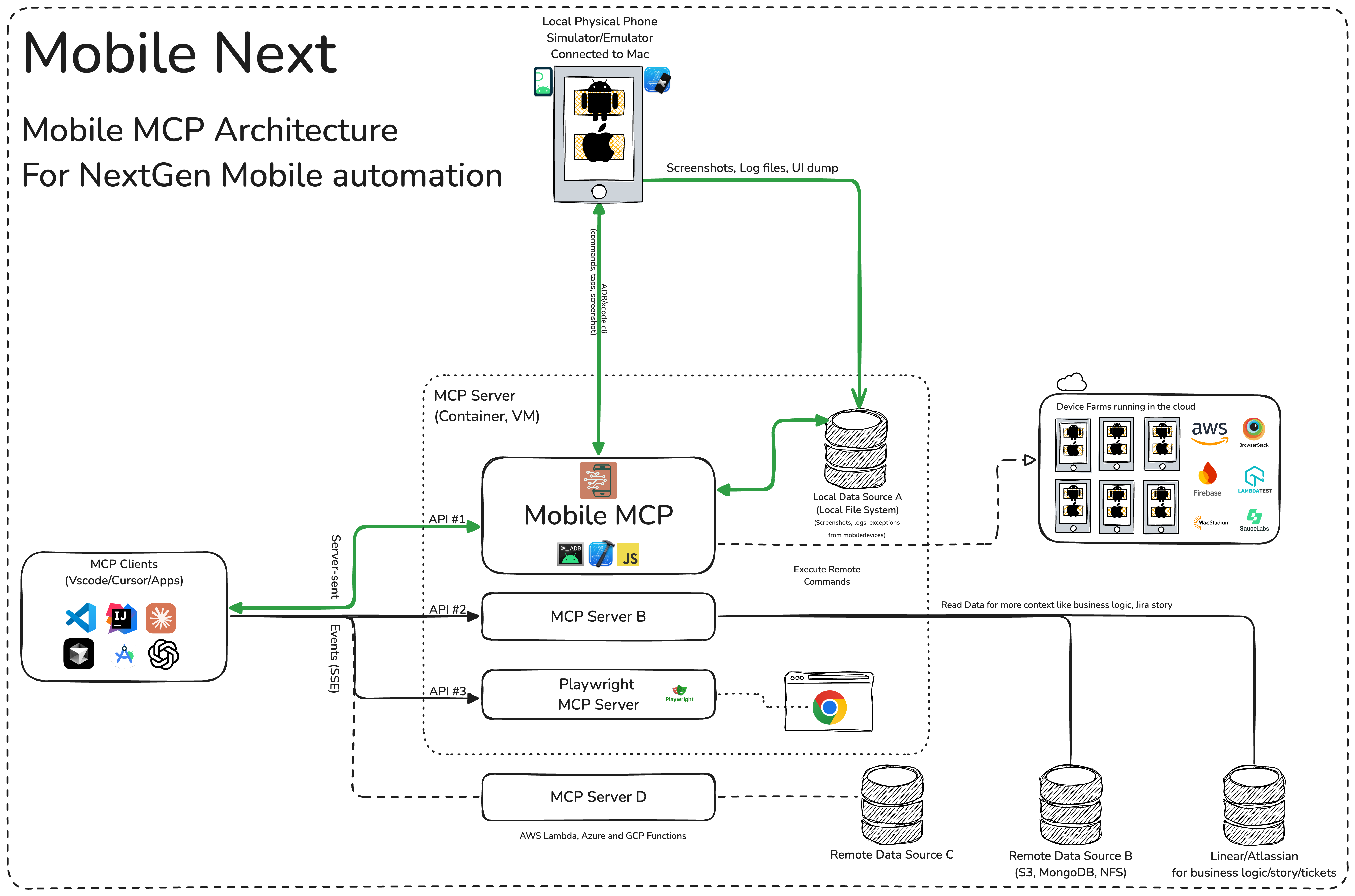
This is an MCP Server that enables scalable mobile automation, development through a platform-agnostic interface, eliminating the need for distinct iOS or Android knowledge. You can run it on emulators, simulators, and real devices (iOS and Android).
This server allows Agents and LLMs to interact with native iOS/Android applications and devices through structured accessibility snapshots or coordinate-based taps based on screenshots.
Works with Claude Code, Codex, Gemini, GitHub Copilot, Antigravity — or any MCP-compatible client.
Run it against devices on your own machine, or against real iOS and Android devices in the cloud with Mobile Next Cloud — same tools, no local setup.






mobile-next-mcp-video.mp4
Quick install detects the MCP clients on this machine (Claude Code, Codex, Cursor, VS Code, Gemini CLI and more) and lets you pick which ones to configure:
npx @mobilenext/mobile-mcp@latest installAdd --yes to configure every detected client without asking.
Manual setup per client: Installation and configuration
How we help to scale mobile automation:
- 📲 Native app automation (iOS and Android) for testing or data-entry scenarios.
- 📝 Scripted flows and form interactions without manually controlling simulators/emulators or real devices (iPhone, Samsung, Google Pixel etc)
- 🧭 Automating multi-step user journeys driven by an LLM
- 👆 General-purpose mobile application interaction for agent-based frameworks
- 🤖 Enables agent-to-agent communication for mobile automation usecases, data extraction
- 🚀 Accessibility-first — fast and cheap: drives apps from the native accessibility tree (no vision model, no image tokens), falling back to screenshots + coordinates only when needed.
- 📱 One API, every target: the same tools work across iOS and Android — simulators, emulators, and real devices.
- 🧠 No platform expertise required: no XCUITest, no Espresso, no per-platform glue — describe the goal and the agent does it.
- 🧰 Full device control: taps, swipes, and gestures; app install/launch/terminate; screen recording; hardware buttons; deep links; orientation.
- 📊 Structured, deterministic output: reads real UI elements and extracts structured data, cutting the ambiguity of screenshot-only approaches.
- 🪞 Device mirroring in Claude Code: for Claude Code running in Ghostty or kitty. Install the plugin and run
/mobile-mirrorto see the device's live screen in a side pane, then tap, type and press Home/Back without leaving the terminal.

| Target | Supported | Setup |
|---|---|---|
| iOS Simulator | ✅ | Xcode + a booted simulator (xcrun simctl) |
| iOS Real Device | ✅ | Device connected over USB and trusted |
| Android Emulator | ✅ | Android SDK + running emulator (adb) |
| Android Real Device | ✅ | adb + USB debugging enabled & authorized |
mobile_list_available_devices- List all available devices (simulators, emulators, and real devices)mobile_get_screen_size- Get the screen size of the mobile device in pixelsmobile_get_orientation- Get the current screen orientation of the devicemobile_set_orientation- Change the screen orientation (portrait/landscape)mobile_fold_device- Fold or unfold a foldable device (iPhone Duo simulators, foldable Android emulators)mobile_set_location- Override the GPS location reported by the device, or clear the overridemobile_clipboard- Read or replace the device clipboard
mobile_login_to_cloud_provider- Authenticate this machine with the cloud device provider (browser-based device-code login)mobile_list_remote_devices- List device models available to reserve from the cloud fleetmobile_allocate_remote_device- Reserve a physical cloud device for exclusive usemobile_release_remote_device- Release a reserved cloud device back to the fleet
mobile_list_apps- List all installed apps on the devicemobile_get_foreground_app- Get the app currently in the foregroundmobile_launch_app- Launch an app using its package namemobile_terminate_app- Stop and terminate a running appmobile_install_app- Install an app from file (.apk, .ipa, .app, .zip)mobile_uninstall_app- Uninstall an app by its package name or bundle IDmobile_clear_app_data- Clear an app's data so it starts fresh (Android and iOS Simulator)
mobile_take_screenshot- Take a screenshot to understand what's on screenmobile_save_screenshot- Save a screenshot to a filemobile_list_elements_on_screen- List UI elements with their coordinates and propertiesmobile_click_on_screen_at_coordinates- Click at specific x,y coordinates or on an element by its refmobile_double_tap_on_screen- Double-tap at specific coordinates or on an element by its refmobile_long_press_on_screen_at_coordinates- Long press at specific coordinates or on an element by its refmobile_swipe_on_screen- Swipe in any direction (up, down, left, right)mobile_start_screen_recording- Start recording the device screen to a video filemobile_stop_screen_recording- Stop the active screen recording and save the video
mobile_type_keys- Type text into focused elements with optional submitmobile_press_button- Press device buttons (HOME, BACK, VOLUME_UP/DOWN, ENTER, etc.)mobile_open_url- Open http/https URLs in the device browser
mobile_get_device_logs- Collect live device logs (logcat on Android, unified log on iOS), optionally saved to a filemobile_list_crashes- List crash reports available on the devicemobile_get_crash- Get the full content of a crash report by its IDmobile_batch_commands- Run multiple tools in sequence in a single call (e.g. click, type, click), optionally listing screen elements at the end
More details in our wiki page for setup, configuration and debugging related questions.
What you will need to connect MCP with your agent and mobile devices:
- Xcode command line tools
- Android Platform Tools
- node.js v20+
- MCP supported foundational models or agents, like Claude MCP, OpenAI Agent SDK, Copilot Studio
To configure it by hand, this standard config works in most of the tools:
{
  "mcpServers": {
    "mobile-mcp": {
      "command": "npx",
      "args": ["-y", "@mobilenext/mobile-mcp@latest"]
    }
  }
}
Amp
Add via the Amp VS Code extension settings screen or by updating your settings.json file:
"amp.mcpServers": {
  "mobile-mcp": {
    "command": "npx",
    "args": [
      "@mobilenext/mobile-mcp@latest"
    ]
  }
}
Amp CLI:
Run the following command in your terminal:
amp mcp add mobile-mcp -- npx @mobilenext/mobile-mcp@latestAntigravity 2
Antigravity doesn't have a CLI command to add MCP servers, so add it manually. Edit ~/.gemini/config/mcp_config.json and add:
{
  "mcpServers": {
    "mobile-mcp": {
      "command": "npx",
      "args": ["-y", "@mobilenext/mobile-mcp@latest"]
    }
  }
}Claude Code
Install the plugin from inside Claude Code. It adds the Mobile MCP server and /mobile-mirror:
/plugin marketplace add mobile-next/mobile-mcp
/plugin install mobile-mcp@mobile-mcp
/mobile-mirror [device-id] opens a pane with the device's live screen. Click the picture to tap, type to send keys, and use the Home, Back, App Switch and URL buttons above it. The picture needs a terminal with the kitty graphics protocol, such as kitty or Ghostty.
If you can't use plugins, add only the MCP server with the Claude Code CLI:
claude mcp add mobile-mcp -- npx -y @mobilenext/mobile-mcp@latestClaude Desktop
Follow the MCP install guide, use json configuration above.
Codex
Use the Codex CLI to add the Mobile MCP server:
codex mcp add mobile-mcp npx "@mobilenext/mobile-mcp@latest"Alternatively, create or edit the configuration file ~/.codex/config.toml and add:
[mcp_servers.mobile-mcp]
command = "npx"
args = ["@mobilenext/mobile-mcp@latest"]
For more information, see the Codex MCP documentation.
Copilot
Use the Copilot CLI to interactively add the Mobile MCP server:
/mcp add
You can edit the configuration file ~/.copilot/mcp-config.json and add:
{
  "mcpServers": {
    "mobile-mcp": {
      "type": "local",
      "command": "npx",
      "tools": [
        "*"
      ],
      "args": [
        "@mobilenext/mobile-mcp@latest"
      ]
    }
  }
}
For more information, see the Copilot CLI documentation.
Cursor

Go to Cursor Settings -> MCP -> Add new MCP Server. Name to your liking, use command type with the command npx -y @mobilenext/mobile-mcp@latest. You can also verify config or add command like arguments via clicking Edit.
Gemini CLI
Use the Gemini CLI to add the Mobile MCP server:
gemini mcp add mobile-mcp npx -y @mobilenext/mobile-mcp@latestGoose

Go to Advanced settings -> Extensions -> Add custom extension. Name to your liking, use type STDIO, and set the command to npx -y @mobilenext/mobile-mcp@latest. Click "Add Extension".
Kiro
Follow the MCP Servers documentation. For example in .kiro/settings/mcp.json:
{
  "mcpServers": {
    "mobile-mcp": {
      "command": "npx",
      "args": [
        "@mobilenext/mobile-mcp@latest"
      ]
    }
  }
}
opencode
Follow the MCP Servers documentation. For example in ~/.config/opencode/opencode.json:
{
  "$schema": "https://opencode.ai/config.json",
  "mcp": {
    "mobile-mcp": {
      "type": "local",
      "command": [
        "npx",
        "@mobilenext/mobile-mcp@latest"
      ],
      "enabled": true
    }
  }
}
Windsurf
Open Windsurf settings, navigate to MCP servers, and add a new server using the command type with:
npx @mobilenext/mobile-mcp@latestOr add the standard config under mcpServers in your settings as shown above.
Once the server is configured, ask your agent to list devices:
list available devices
You should get back your running simulators, emulators, and connected devices. If you do, Mobile MCP is wired up correctly. If the list is empty, make sure a simulator or emulator is running (see Prerequisites) — for more help, check the wiki.
Using Mobile MCP to automate a mobile app, or to test one? Tell your agent to write the flow as a Mobilewright test. It becomes deterministic, and part of your CI/CD workflow.
import { test, expect } from '@mobilewright/test';

test('sign in', async ({ screen }) => {
  await screen.getByLabel('Email').fill('user@example.com');
  await screen.getByRole('button', { name: 'Sign In' }).tap();
  await expect(screen.getByText('Welcome back')).toBeVisible();
});
Start with npm init mobilewright@latest. The step-by-step guide goes from an agent session to a test running in GitHub Actions.
Want to scale to hundreds of devices? Use Mobile MCP in your CI/CD pipeline?
In your Agent, prompt:
log in to mobile next cloud and then show me which remote devices are available to me
By default, Mobile MCP runs over stdio. To start a Streamable HTTP server instead, use the --listen flag:
npx @mobilenext/mobile-mcp@latest --listen 3000This binds to localhost:3000. To bind to a specific interface:
npx @mobilenext/mobile-mcp@latest --listen 0.0.0.0:3000Then configure your MCP client to connect to http://<host>:3000/mcp (or https://…/mcp behind TLS). The endpoint accepts Streamable HTTP (POST on /mcp); remote mode is stateless (no session affinity required), which works well with Smithery and other horizontal hosts.
Migration note:
--listenpreviously served the deprecated HTTP+SSE transport on/mcp. Clients must use Streamable HTTP againsthtt